

Analysebaum
AI Splits
Wir präsentieren AI Splits, eine bahnbrechende Funktion, die sofort die Faktoren mit dem größten und geringsten Einfluss in den Daten aufdeckt. Sie scannt automatisch alle verfügbaren Dimensionen, um die wichtigsten Einflussfaktoren für Kennzahlen zu identifizieren und hervorzuheben, und ermöglicht so eine Ursachenanalyse mit beispielloser Geschwindigkeit und Präzision.
Benutzerdefinierte Einfärbung für Spaltenelemente
Spaltenelemente können jetzt einfarbig oder dynamisch per Ausdruck eingefärbt werden. Dies bietet mehr Flexibilität bei der visuellen Gestaltung und hebt Datenpunkte effektiv hervor, um eine noch intuitivere und aussagekräftigere Analyse zu ermöglichen.
Verbesserungen:
- QLIK-627 — Optionen zur Anpassung der Tooltip-Informationen hinzugefügt.
QLIK-756 — Unterstützung zum Hinzufügen und Anzeigen einer zweiten Kennzahl, des prozentualen Anteils und der Abweichung hinzugefügt
- Möglichkeit zum Hinzufügen einer zweiten Kennzahl hinzugefügt
- Beschriftungseinstellungen für die 1. und 2. Kennzahl hinzugefügt, wie z. B. Anzeigevorlagen und Schrifteinstellungen
Verbesserungen:
- QLIK-736 — Die Arbeit mit Interaktivität im Bearbeitungsmodus erleichtert
Fehlerbehebungen:
- QLIK-766 — Problem mit dem sich ständig wiederholenden Dialog „Änderungen übernehmen/verwerfen“ behoben
Mehrere Kennzahlen
Einführung der lang erwarteten Funktion, mit mehreren Kennzahlen innerhalb desselben Decomposition Tree zu arbeiten. Sie ermöglicht es Ihnen, alternative Kennzahlen neben der primären festzulegen, was einen nahtlosen Wechsel ohne Neuerstellung der gesamten Visualisierung erlaubt.
Beginnen Sie mit dem Hinzufügen alternativer Kennzahlen im Reiter „Daten“ des Eigenschaftspanels. Klicken Sie dann bei Bedarf auf das Root-Gesamtelement, um eine andere Metrik für die Untersuchung auszuwählen.
Spaltensortierung
Zur Verbesserung der Analysekontrolle haben wir eine Funktion zum Sortieren von Elementen innerhalb von Dimensionsspalten im Analysemodus hinzugefügt. Dadurch wird das Organisieren von Elementen nach Wert innerhalb der Spalten mühelos, was Ihre Fähigkeit verbessert, Muster und Trends zu identifizieren.
Um diese Funktion zu nutzen, klicken Sie auf die drei Striche im Header einer Spalte und wählen Sie die gewünschte Sortierreihenfolge aus dem Dropdown-Menü: aufsteigend, absteigend oder Zurücksetzen auf die Standardreihenfolge, die im Abschnitt „Sortierung“ des Eigenschaftspanels im Bearbeitungsmodus definiert wurde (alphabetisch oder ausdrucksbasiert).
Anpassung der Spalten-Header
Um Ihnen eine personalisierte Erfahrung zu bieten, haben wir die Möglichkeit implementiert, das Erscheinungsbild von Dimensionsspalten-Headern anzupassen. So können Sie jetzt die visuellen Elemente der Header einfach an Ihren bevorzugten Stil oder das Branding Ihres Unternehmens anpassen.
Greifen Sie auf diese Einstellungen zu, indem Sie zu Darstellung > Header-Einstellungen navigieren. Die Anpassungsoptionen umfassen Schriftstile, Hintergrundfarben und mehr.
Allgemeine Design-Anpassung
Veröffentlichung einer Reihe allgemeiner Design-Optionen zur Anpassung Ihrer Decomposition Tree Visualisierungen. Diese Verbesserungen umfassen Hintergrundfarbe und Hintergrundbild sowie Titel-, Untertitel- und Fußnotentexte, sodass Sie Ihre Datendarstellung problemlos an Ihre Designvision anpassen können.
Greifen Sie auf diese Einstellungen im Eigenschaftspanel zu und konfigurieren Sie sie, insbesondere unter dem Abschnitt Design > Allgemein. Hier können Sie Schriftstile, Farbschemata und mehr auswählen, um Ihre Visualisierungen an Ihre Vorlieben anzupassen.
Verbesserungen:
- QLIK-690 — Preloader für die Erweiterung im Nicht-Flex-Modus eingeführt.
- QLIK-705 — Die Menübreite passt sich nun an den angezeigten Inhalt an.
- QLIK-706 — Im Flex-Modus wird die letzte Spalte nun sofort erweitert, ohne dass eine Auswahl aus dem Menü erforderlich ist.
- QLIK-707 — Abschnitt Präsentation > Design zur Konfiguration von Hintergrund-, Balken- und Verbindungslinienfarben hinzugefügt.
- QLIK-708 — Anpassungsoptionen für den Text von Elementen innerhalb von Spalten hinzugefügt (Stil, Farbe, Schriftfamilie).
- QLIK-709 — Paging-Erlebnis verbessert.
Fehlerbehebungen:
- QLIK-688 — Problem behoben, bei dem Spalten im Flex-Modus nach dem Entfernen einer Zwischenspalte falsch angezeigt wurden.
- QLIK-689 — Fehler behoben, der dazu führte, dass Elemente innerhalb von Spalten doppelt vorkamen.
- QLIK-698 — Fehler behoben, der das Erweitern verhinderte, wenn eine Dimension im Erweiterungsmenü ausgewählt wurde.
- QLIK-700 — Einfärbung im Auto-Modus für die Master-Kennzahl korrigiert.
No release notes available.
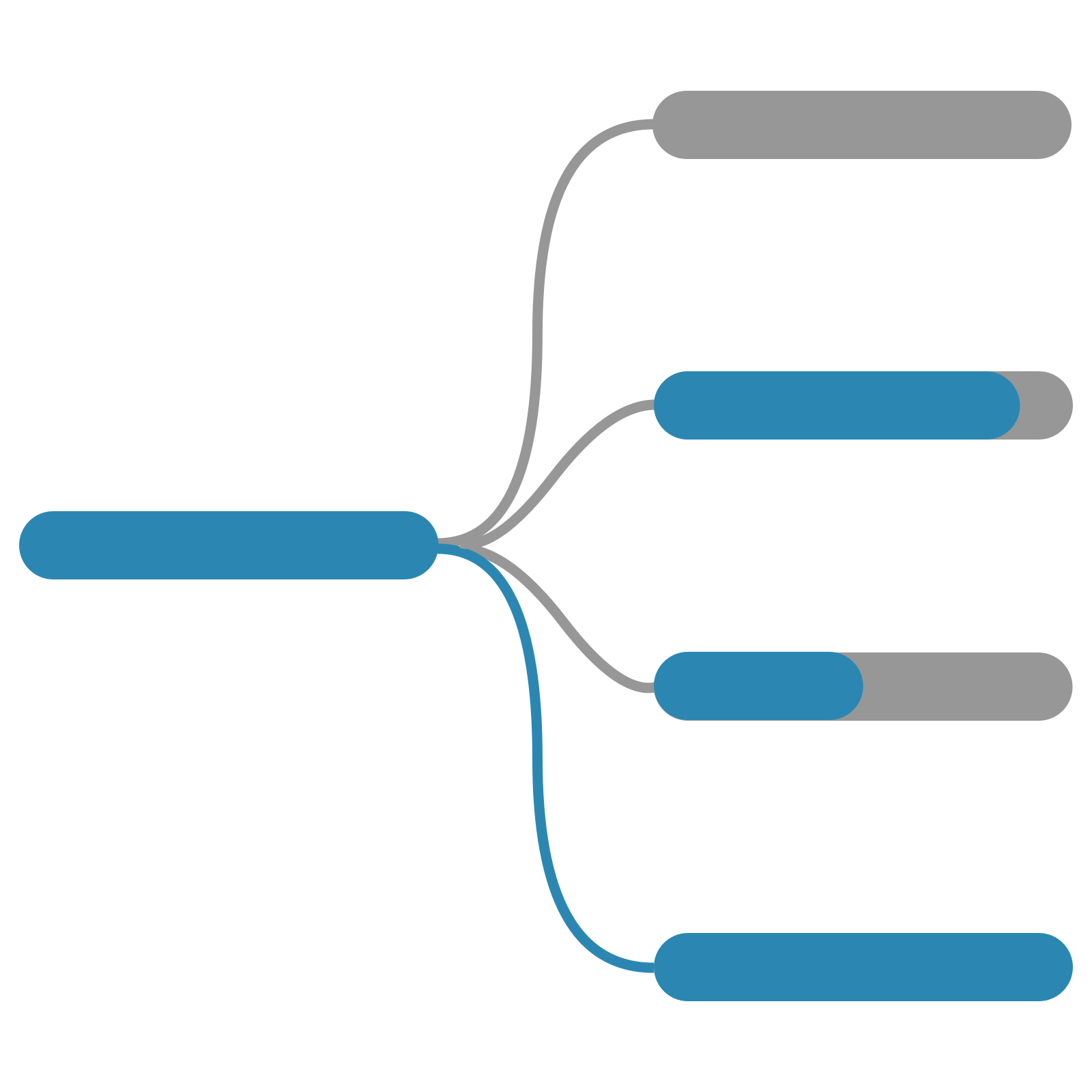
Decomposition Tree
AnyChart is proud to release the Decomposition Tree extension for Qlik Sense! Enjoy true ad hoc reporting across multiple dimensions and root cause analysis with our decomposition tree — the only chart type of its kind in Qlik!
Highlights:
- Slice and Dice reporting based on each user's preference
- Conditional coloring for easy viewing
- Multiple view modes for easy integration into your Qlik environment
See the Decomposition Tree Features demo app for Qlik Sense.
Improvements:
- Migrated to unified About panel with updated branding and license display.
- Minor internal improvements.